Cricut is a widely recognized brand of die-cutting machinery for the creation of paper-based crafts such as cards, posters, and scrapbooks. They’re also used to cut fondant images for imprinting into cakes, and similar mediums can be churned out for pressing to shirts, shaped pieces of material and other creative uses.

They are, by nature, an artist’s machine and are frequently used in the production of art-based merchandise that’s framed, worn or eaten as part of a decorative food arrangement. The machines are purchased for around the price of a printer and placed in your home as another electronic appliance that can be used as needed.
All machines will include software that will be needed to interact with the various features of each. You simply install it on your PC, tablet or smartphone to get started. The software interface is essentially a graph table where imported or created images are set, modified and assembled into the result that your machine can cut, score and print accordingly. Think of them as alternative printers.
Here, we’re going to explore a number of Cricut’s die-cutters and discover which one does the most justice for your specific needs.
Table of Contents
Best Cricut Machine Comparison Table
| Product | Photo | Two-in-One command Cutting and Writing | Fast Mode | Bluetooth | Check Price |
|---|---|---|---|---|---|
| Cricut Maker |  | Yes | Yes | Yes | Check Price |
| Cricut Explore Air 2 |  | Yes | Yes | Yes | Check Price |
| Cricut Explore Air |  | Yes | No | Yes | Check Price |
| Cricut Explore One |  | No | No | Bluetooth adapter sold separately | Check Price |
| Cricut Expression 2 |  | No | No | No | Check Price |
| Cricut Expression |  | No | No | No | Check Price |
| Cricut Personal |  | No | No | No | Check Price |
| Cricut Create |  | No | No | No | Check Price |
| Cricut Mini |  | No | No | No | Check Price |
Best in Category
Cricut Explore Air — Best Cricut Machine for Beginners
It’s not the most feature-rich offering out there, but it handles most materials that you’d normally introduce to a die-cutter and does the basic write-score-cut routine that’s expected of these machines.
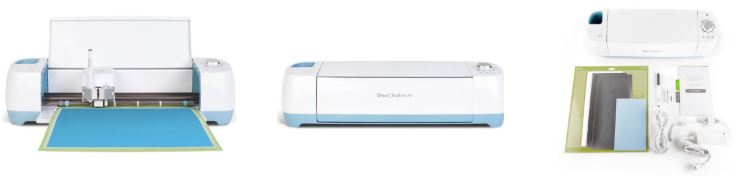
It also slides in on an affordable price tag, bringing a reasonable software offering that lets you simply upload your images and manipulate them for instant results on the Explore Air. It’s a simple device to pick up and use compared to most Cricuts that are aimed at more serious users.
Cricut Expression 2 — Best Cricut Machine for Vinyl Lettering
The Expression 2 is easily the best Cricut when it comes to school projects, and these usually include a great deal of lettering projects with a variety of materials.

If you’re looking to create large bulletins out of carefully-cut letters and add graphic stamps to improve the presentation of these boards, this cutter will do it better than any other.
Cricut Maker — Best Cricut Machine for Shirts
This particular cutter excels at handling fabric materials, including felt. The Maker does this precisely, quickly and with unmatched efficiency compared to other Cricut machines.

In fact, this is the one and only go-to device for this exact purpose because it does it so well; the reviews testify greatly to the effect that the Maker has had on the efficiency of tailoring projects versus other Cricut offerings that tote basic compatibility for the same purpose.
Read Also: Best Dac and Amp Combo – Top-10 Product Reviews and Buying Guide
Best Cricut Machine Reviews
Cricut Maker
 This cutter is designed to, well, make stuff. We’re not kidding: This machine is specifically optimized to dish out the finest paper and leather crafts, vinyl decals, sewing goods, balsa wood models and press-ready decorative tags that can be ironed on.
It utilizes a rotary blade that excels at the precisely cutting cloth, and it can be swapped out for a heavier blade that can chop through wood and other heavy materials with comparable accuracy.
Since every Cricut machine seems to use different software, it’s worth noting that this one distinctly sticks by a simplified app setup that makes it quick and easy to handle your projects with confidence. It also allows you to upload your own content for application to wood, leather, fabric, paper, felt and more.
Finally, just for that sweet touch, Cricut threw on a phone and tablet dock that charges your iOS or Android device while you play music, interact with the apps or simply mind your own business. It wasn’t a necessary touch, but it’s still a nice addition nonetheless.
This is the real deal. The Cricut Maker runs circles around the Explore One, Air and Air 2 — at a price of course. Costing nearly twice what the Explore Air 2 will ask, you definitely won’t be picking this one up unless you specifically require a top-notch cutter to handle the thickest materials with the greatest precision and speed.
The unique rotary blade assembly isn’t found in other Cricut models, and it promises smooth-as-butter cutting through the likes of balsa wood, felt, thick leather and other materials that your average Cricut would struggle to work with. This comes in addition to a deeper-cutting blade that the Explore One and Air series lack, meaning you can really trust this thing to handle whatever you throw at it.
- Firstly, if you’re looking to run a business that largely depends on a craft-cutter, this will probably be your go-to just for the raw cutting power alone. The Explore One and Air series can handle fabrics and leather, but you can expect mistakes with those models that could waste materials, slow production or ruin the results.
- Secondly, the emphasis on mobility is clear since the Maker doesn’t just include the expected Bluetooth support but also provides a dock for setting your tablet or smartphone while you organize your cuts. Again, neither the Explore One nor the Explore Air series have this, but we’re not saying it’s that incredible a difference; it’s just nice to have. Overall, the Maker is an objectively more powerful offering, but most won’t need it, especially at the asking price.
The reviews are mostly ecstatic with many citing that the Maker really nails the precise cutting of felt and other fabrics for tailoring projects. However, there’s a fairly healthy body of critics who had issues with crashing and auto shut-offs in addition to a rough time dealing with Cricut’s support team. This all seems to come at a steep price, too, since the machine isn’t exactly cheap. However, even the negative reviews had kind words for the machine’s functionality when it worked properly.
Verdict
- Incredibly accurate fabric-, leather- and balsa-cutting
- Handles all the tasks that a normal cutter would in addition to the attention that these special materials receive
- Can be operated through a simplified app interface directly from your iOS or Android device
- Hardware doesn’t seem well-assembled much of time, resulting in a rather high lemon rate
Cricut Explore Air 2
 Standing closer to the middle range of the pricing spectrum, you’re looking at a machine that handles just about everything you could ask of your craft-cutting machine.
The Explore Air 2 supports Bluetooth connections with Android and iOS devices that have the necessary app installed. This allows you to import images, modify them and create prints directly from your mobile smart device.
The Explore Air 2 is ideal for creating stickers, posters, greeting cards, print images for apparel and decorations, and plenty of other options whether you’re running a business or just looking to deck out your home with your personal designs.
There’s not much to write about here. If you’ve seen the Cricut Explore Air, you’ve seen most of the Air 2. The one key difference is speed:
The Air 2 is capable of what Cricut calls “fast mode“, which is said to allow twice the operation speed of its components. This is in addition to the Explore Air’s two-in-one command function, which means you can cut while scoring or writing, and all of this can happen at twice the rate with the Air 2’s revamped system. It sounds nice, but it’s probably not essential for basic projects: The Explore Air is plenty fast enough, and hey, the Explore One isn’t too shabby either.
You’re also getting the same inbuilt Bluetooth support that you find in the Explore Air, and the biggest point to note is the expanded variety of materials that can be handled. Whereas the Explore Air is said to handle over 60 materials, its successor can tackle more than 100 — an impressive figure, especially for such a nominal price hike.
Naturally, you could expect the Explore Air 2 to offer improvements over its predecessor for a greater cost, but it’s still not in the same league as the Cricut Maker. On the other hand, if you’re just starting off fresh with craft-cutting and don’t mind forking over a little more dough, this offers considerably more value than the Explore One.
Verdict
- Supports more than 100 materials for the production of posters, cards, stickers and more
- Convenient Bluetooth connectivity to Android and iOS devices
- The software is seriously lacking, according to some users
Cricut Explore Air
 The Explore is an affordable option that brings a plethora of nifty little benefits to streamline your craft-cutting process.
With Bluetooth, you can simply connect the Explore to your laptop, tablet or smartphone to create and edit crafts for production without the muss and fuss of wires.
There’s a Smart Set dial to quickly flip settings, and this machine can handle more than 60 different cutting materials, including leather. Concerning the file types of your images, don’t sweat it: The Explore accepts the usual formats in addition to .dxf and .svg.
Finally, a dual carriage system allows you to perform two hardware actions simultaneously:
- Cut and score
- Score and write
- Or write and cut two pieces at once for improved efficiency
You’ll find the Explore Air interesting if you plan to use your smartphone or tablet to arrange your cuts before pushing them out. The inbuilt Bluetooth radio means you won’t need to spend extra on an adapter or worry about a detachable stick that pokes out.
The cost isn’t much higher than the Explore One, and we’d lie to say that it probably isn’t worth it even for a beginner to just pick up the Explore Air instead of the One. You’re also getting support for a much larger gamut of materials — rather, a promise of more reliable cutting with thicker materials such as felt and leather. It’s arguably not essential to have this benefit, but it’s certainly a plus if you’re trying to run a business with one of these.
Take note that despite the enhanced crafting speed, your true enterprise-level cutting will be found in the Cricut Maker, which is as complete an offering as you’ll find: faster cutting, more precision and thicker materials.
Verdict
- Dual carriage system doubles hardware processing
- Supports a wide spectrum of materials to print, score and cut
- Bluetooth allows convenient wireless control over content importing and editing
- Affordable
- May experience software difficulties with all but Design Space
- Doesn’t allow you to choose where on the paper you’d like to take your cuts from
Cricut Explore One
 If booping buttons on your phone or tablet touchscreen is down your alley, you have the power to do just that toward the construction of pro-level crafts with the Explore One and its collection of apps that lend compatibility with nearly any device.
You can, of course, also use it with desktop computers if you so choose. Unfortunately, the machine doesn’t come with a Bluetooth radio built in. This is a separately purchased add-on.
For beginners, this is a particularly excellent cutting solution since it doesn’t include the extra bells and whistles that aren’t essential for a basic project. This is why the price is so low, and as such, it’s attractive for simpler pursuits that involve easygoing materials (paper, cardstock, vinyl, foil, etc.) and a relaxed time schedule to cut, write and score your results.
However, for just a little extra dough, you can pick up an Explore Air with support for a drastically wider spectrum of materials and two-in-one commands that halve your production time. The Explore Air also includes Bluetooth functionality right out of the box, which for some is a highly discouraging point of the Explore One.
Still, if you’re just looking for the basics to run with simple crafting projects, there’s no shame in choosing the Explore One. After all, it does mostly the same thing as the more expensive varieties: It cuts, writes and scores on a plethora of materials.
On the other hand, you might be comfortable tethering it up to your PC and simply punching out your results from there. The idea with the Explore One is to stay basic and keep it real, and there’s even an adjustable knob for easy material selection.
Verdict
- Well-rounded machine that handles everything you expect of an electric craft-cutter
- Includes support for uploads and modification straight from mobile devices
- The Bluetooth adapter has to be bought separately
- Some find the software to be lacking and unethically expensive to use
Previous Generation Models
Cricut Expression
 The Expression is clearly designed with classroom projects in mind with its focus on creating artsy lettering and a variety of silhouette cuts to jive up the atmosphere in a room full of hopeful children.
Surprisingly, the machine comes with its own LCD screen built in, allowing you to control everything directly from it without needing a Bluetooth or wired connection to a source device for control. As such, you can easily use the letter and graphic presets that are already loaded out of the box to streamline the decorating process for the curriculum.
Verdict
- Excellent solution for school projects with a bevy of preloaded options for letter cutting and signage
- Inbuilt LCD screen avoids the requirement of connecting a third-party machine
- Cartridges are inordinately expensive
- May not play so nice with Mac PCs
Cricut Expression 2
 The successor to the school-friendly Expression brings even more to the table for the classroom, coming with Cricut Alphabet out of the box alongside Cricut Essentials for a plethora of school-oriented software features.
The machine uses French Manor cartridges, which some feel are too expensive to justify a purchase, but there’s a solid backing of positive reviews to vouch for people’s willingness to contend with that. The fact is, this is a great machine for what it’s designed to do, but that also means that you shouldn’t invest in it for personal use.
Like its predecessor, the Expression 2 packs an LCD screen that eliminates the need for a PC or smart device, which for many is a relief because there’s no need to mess around with Design Space.
It supports a range of cutting sizes from one-fourth to 23 and a half inches on a flexible spectrum of materials for scrapbook, stickers, signage and cards. Don’t expect to use anything too exotic here; this isn’t meant to tackle enterprise-level crafting.
Verdict
- Great for school projects with a collection of preset designs and fonts
- Works with a standard array of materials for school purposes such as adhesive foils and cardstock
- Inbuilt LCD screen eliminates the need for another machine to create your crafts
- Cartridges are fairly expensive
- May not work with Mac desktop devices
Cricut Personal
 If Cricut’s machines always seemed to be geared toward the younger crowd and more juvenile purposes, that’s honestly a fair assessment.
That’s not a bad thing by any stretch; it’s just that some people understandably want to run a business with the assistance of a specialized craft-cutting machine to complement a dye-sublimation printer, heat press, and other technologies.
The great contradiction here is that the machine is actually easy enough for a child to learn and use on their own, but that’s not a bad thing. It just means it’s convenient along with everything else it brings to the table.
Cricut Personal is able to cut from one inch up to five and a half tall, giving it some flexibility when chopping up content for your needs. Like most such devices, this one sticks to cartridges for its printing, and while it can support a computer connection, it’s able to work fine on its own with a monochrome display.
The bulk of the negative reviews on this device aren’t because of flaws that are inherent to it but more the issue of how they’re arriving at clients’ doors. We’re not sure how to report on this since it shouldn’t have anything to do with this particular product, but this model apparently ships in damaged, used or outright destroyed conditions in some cases.
Verdict
- Inbuilt screen means there’s no need to hook up a PC to use
- Very simple, to-the-point interface
- Compact and portable
- Often ships in used or damaged conditions for unknown reasons
Cricut Create
 If you’ve seen the full range of names that Cricut likes to grace its products with, you’ve probably wondered at some point where oh where they get the inspiration from.
If Expression is for schools, Explore is for beginners and Mini is for people with night stand-sized desks, then we figure that the Create is probably the company’s answer to the requirement for creative flexibility. That means that it should support a whole lot of design possibilities, right?
For as long as it works, it’s also cited for its sheer complication to operate, making it a total frustration without included instructions from Cricut or viable tech support in the first place. Who would have ever believed that the Create was named after the awkward navigational scheme?
We don’t like handing out bad reviews, so we’ll point out that the inbuilt screen is a great plus since it allows you to use it without plugging in anything extra. If the machine works for you and isn’t terribly complicated — and there are many who seem to have no issue with the Create — then it seems to be a powerful device that excels at creating cards in particular. However, you then have to account for the proprietary cartridges, which are costly and restricting at best. It’s a difficult verdict for us.
Verdict
- Eight-way blade for versatile cutting
- Plethora of cutting presets
- Comes with a display built in, cutting out the need for an attached PC to use
- Tends to malfunction and flat-out die
- May be exceedingly complicated to use
Cricut Mini Cutting Machine
 In compact fashion, the Mini is designed to tackle tasks that are, well, smaller than life. As such, it’s designed to handle tiny details in great detail when it comes to printing and cutting.
Unfortunately, there are several problems with this device, and the first is apparent in the requirement of an internet connection along with a connector for your laptop or PC. Otherwise, it needs to be connected to Cricut Gypsy — an aggravation to be sure.
However, you’re probably looking into this device because you want something small, quiet and lightweight, and the Mini fills these metrics quite nicely.
The niceties end there. Bound by a pay-to-use platform and a highly limiting array of creation options, you’re not going to accomplish much with this device before you decide to send it back. While it is nice for infrequent productions of cute little projects, it’s just not worth the cost if that’s all it’s going to amount to.
Much of what you’ll end up paying for occurs in the form of library restrictions since the inbuilt software doesn’t want you to use anything other than tin-can fonts and designs, which speaks to little effect for business practices or other full-sized requirements.
As if that wasn’t bad enough, the cartridges just add more dough to the overall cost of actually using the Mini. Picture for one moment what life would be like if you needed to buy different cartridges for each type of pattern that you wanted to cut. Yeah, it’s ugly.
As if that wasn’t bad enough, the one great benefit of this machine — the sheer portability — is defenestrated with the total lack of support for Bluetooth connections to smart devices since, you know, those are also quite portable in their own right. Because you need to actually plug this little beastie into your PC, you’ve already lost some of the “mini” that was supposed to make the Cricut Mini a great sell. Hey, at least the few designs that it supports are sharp and detailed; we’ll give them some credit here.
Verdict
- Small and lightweight
- Quiet cutting mechanism
- Highly limited free design library with a bevy of cheap, tin-can designs
- Expensive library add-ons
- Expensive cartridges that need to be replaced when working with different cutting patterns
- Requires an internet connection or tethering to a Cricut Gypsy to be usable at all; we hope you love DRM
- For emphasizing portability, you’d expect Bluetooth for smart-device interaction at bare minimum, but even that benefit is offset by the dead-set requirement that you hook it up to your PC instead
Read Also: Best NAS for Plex Server – Top-12 Reviews and Buying Guide
Special Cricut Products
The following three products are categorically related but radically veer from mainline Cricut machines. As such, they can’t be reviewed in relative standing to the products that have been listed up to this point. With that said, let’s take a look at some unique expressions of Cricut’s technology. Who knows: These might be exactly what you were looking for.
Cricut Cuttlebug
 As much as Cricut wants you to believe that the Cuttlebug has a personality of its own, don’t believe the hype: It’s a soulless machine that unquestioningly carries out your bidding.
The Cuttlebug, in particular, brings quality embossing to a wide gamut of material types with dies of any sort that you already own. There’s a pop-up handle and compact folding chassis built into this model for portability, but without a battery built in, you’re still going to be plugging this one up to a socket for results.
It comes with everything you need to successful cut, score and emboss your way to a satisfying result.
Cricut Easy Press
 In crafting and printing businesses, it’s often necessary to have a heat press within reach to stamp decorative home items, apparel and sports equipment such as skateboards.
Even when you’re handling Cricut craft-cutters, some of the designs that you churn out might find their way to the surface of some object that you’ll wear, use, drink out of or keep nearby as a decorative instrument.
The Cricut Easy Press is supposed to handle this in a miniature package deal that evenly heats contents within a minute or less. With adjustable temperature settings and an auto shut-off feature, it’s customizable and safe. To top it all off, the reviews for this thing are glowing hot.
Cricut Mini Cake
 As someone who might be brand new to Cricut devices or craft-cutting machines in general, there’s something amusing about the package and naming of the Cricut Mini Cake.
Normally, these machines are used for arts and crafts, but we did mention in the introduction that fondants were one of the many applications. While most such machines don’t support fondants, gum paste or sugar sheets — at least, not effectively — this one is designed specifically for that purpose.
Apart from the obvious culinary application, there’s nothing special about this cutter, and that’s perfectly okay. When you need a cake design pronto, this little beast in its stylish hot rod-esque design will be a happy sight for sore eyes.
Unfortunately, we still don’t know if the cake is a lie, but that’s neither here nor there.
Best Cricut Machine Buyer’s Guide
Blade Array
One of the most important aspects of your Cricut machine to look at when settling on a purchase is how deeply the blades can cut and the arrangement they’re laid in. Some machines use multiple blades for accelerated cutting; others use a rotary design to improve precision and cutting power.
Multi-Functionality
If expeditiousness is important to you, consider picking up a Cricut machine that’s capable of simultaneously cutting while writing or scoring.
The Explore Air and Explore Air 2 are both able to pull this off while the Explore One must queue actions in single file and knock them out one by one.
Material Dimensions
Generally speaking, you want a Cricut machine that supports material in the size that you need it cut. Most Cricut machines are capable of cutting however small or large you need, but the issue arises with smaller offerings like the Cricut Mini that may not support sheets larger than 8.5 x 12 inches.
Fortunately, this isn’t a difficult metric to assess when seeking out a new Cricut for your crafts since you can eyeball the holding tray and decide if it fits your requirements. Additionally, the Cricut Mini is capable of higher precision with smaller cuts, which is another point to look at. If you’re attempting to make stickers or other small, detail-intensive cuts, you may consider a machine that emphasizes accuracy with micro-sized projects.
Bluetooth
Some Cricut machines don’t include Bluetooth radios for communicating with smartphones, tablets and laptops. This may be important to you if you plan to use your portable device to interact with Cricut’s cloud apps to import and customize cuts. Some Cricut machines won’t come with the Bluetooth built in but do support an add-on at additional cost; the Explore One is an example of such a machine. However, Bluetooth isn’t imperative on your Cricut since you can still connect it via USB to your laptop or PC.
Dock
This isn’t a terribly important point to consider, but if you plan to use your mobile device extensively with the production of cuts, certain models such as the Cricut Maker will include a dock for holding your smartphone or tablet. These usually accommodate a charger in addition to the dock.
Best Cricut Machine FAQ
How do you set up and use a die-cutting machine?
In general, die-cutting machines are like printers except they can also perform precision cuts and scores in addition to writing and drawing letters and images. You simply set the cutter on a desk, install any ink cartridges that are included and plug in the power cable. You can either connect the cutter to your PC via USB or enable a Bluetooth connection to your phone or tablet. By downloading the app to such devices or using the included software disc for your PC, you can interact with the machine remotely and upload images for customizing cuts. Sheets of your chosen material are extracted from a holding tray and modified per your instruction.
What should I look for in a die-cutting machine?
Die-cutters are simple devices when it comes to selecting the hardware; the software is what normally hangs people up. Cricut’s software is fairly good, but because it varies from one cutter to the next, some will experience more trouble with it than others. Generally, you want a machine that can cut the materials you plan to work with (wood, fabric, leather, etc.) and also supports software that allows you to upload and modify your works fluidly. In terms of hardware, most of what you could look for will already be ideal for general-purpose cutting.
Are there other types of cutters besides Cricut?
There are other popular brands of cutters such as:
- Brother
- Sizzix
- KNK
- Silhouette
While Cricut is the most well-known and widely used, not everyone prefers their taste in software support or functionality.
Do all cutting machines support unusual features and materials?
All cutters support fondant cuts, leather, felt and balsa wood in varying degrees, and those that don’t flat-out advertise support for them aren’t guaranteed to work effectively or at all in these manners.
Generally speaking, you can count on every cutter supporting printer paper, cardstock, paperboard, vellum, adhesive foils and a handful of other basic materials; however, balsa wood and fabric are less likely to pan out.
Do Cricut machines usually include Bluetooth support?
Surprisingly, many of them don’t. Some require that you install a Bluetooth adapter; others flat-out don’t support it at all. A handful does include Bluetooth innately. Those that do can connect to laptops, tablets, and smartphones for interaction through Cricut’s software.
Conclusion
When it comes to Cricut machines, you have one of two options: You can either cut your fabric, wood, paper and leather by hand with a pair of scissors, or you can elect for a machine that can quickly and precisely chop it up for you with additional features of modifying, resizing and adding to your crafts before pushing out the final product.
Die-cutters are considered essential to serious crafting projects that involve cutting up a material of one sort or another, and while you could certainly do this manually with an X-Acto knife, it would be terribly tedious and accident-prone. They’re not viable replacements for office printers, but some are able to print images in similar fashion.
Looking ahead, there’s not much to see right now with respect to die-cutters. The majority of that promise lies in 3D printers, and while aren’t able to cut materials that you already have, they certainly can create new ones inside a 3D space. This is in many ways a more interesting prospect.
However, Cricut’s die-cutters are generally considered the leading edge in consumer-level technology with other brands leading the heavier, more industrial side of the matter. Perhaps it will eventually be possible to integrate the cutting function into 3D printers and form an all-in-one solution for craft creation and modification, but for now, it’s hard to complain about the efficiency benefit that these devices bring to crafting of all kinds.
Can I use Cricut Maker with an iPad?
Hello Diana,
Yes, it can be used with iPad, iPhone, devices on Android operating system, as well as with computers on other operating systems. In addition, this device comes with a slot for connecting a mobile device. In Cricut Maker you can also charge your mobile device via USB port.
Best regards